GitLab
GitLab is a version control system with a wide range of DevOps features.
The digital-hub.sh GitLab instance is deeply integrated into the KiMeKo application development blueprints, keeping your work in sync at all times and providing automated convenience functions. Every project receives automatic access to a corresponding GitLab group, and repositories are automatically created and configured for every application registered in the (upcoming) KiMeKo Application Manager.
This guide details some of the finer details you might need to know when working on the digital-hub.sh GitLab instance.
How to use your digital-hub.sh SSO account with GitLab
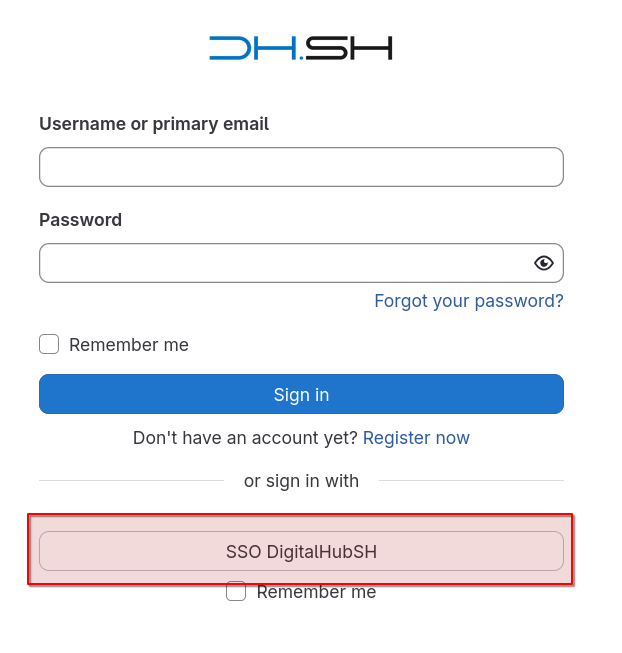
Using your digital-hub.sh SSO account with the GitLab instance is easy—when logging in, simply use the SSO DigitalHubSH button at the bottom of the login form.
How to authenticate for Git operations
Git operations can be carried out either via HTTPS or SSH. Both come with some caveats and required setup:
Using Git via HTTPS
HTTPS Git operations require you to authenticate with a username and password. However, your digital-hub.sh SSO account password won’t work, as it is only used within the digital-hub.sh identity provider when logging in—GitLab itself is only informed that the login succeeded, it is never informed of the password itself.
Therefore, it is required that you set up a Personal access token inside GitLab, which you can then use in place of a conventional password.
Visit the Personal access token settings page when logged in to manage your tokens. There, you will find a button entitled Add new token:

After clicking it, GitLab will ask you for some input regarding your token.
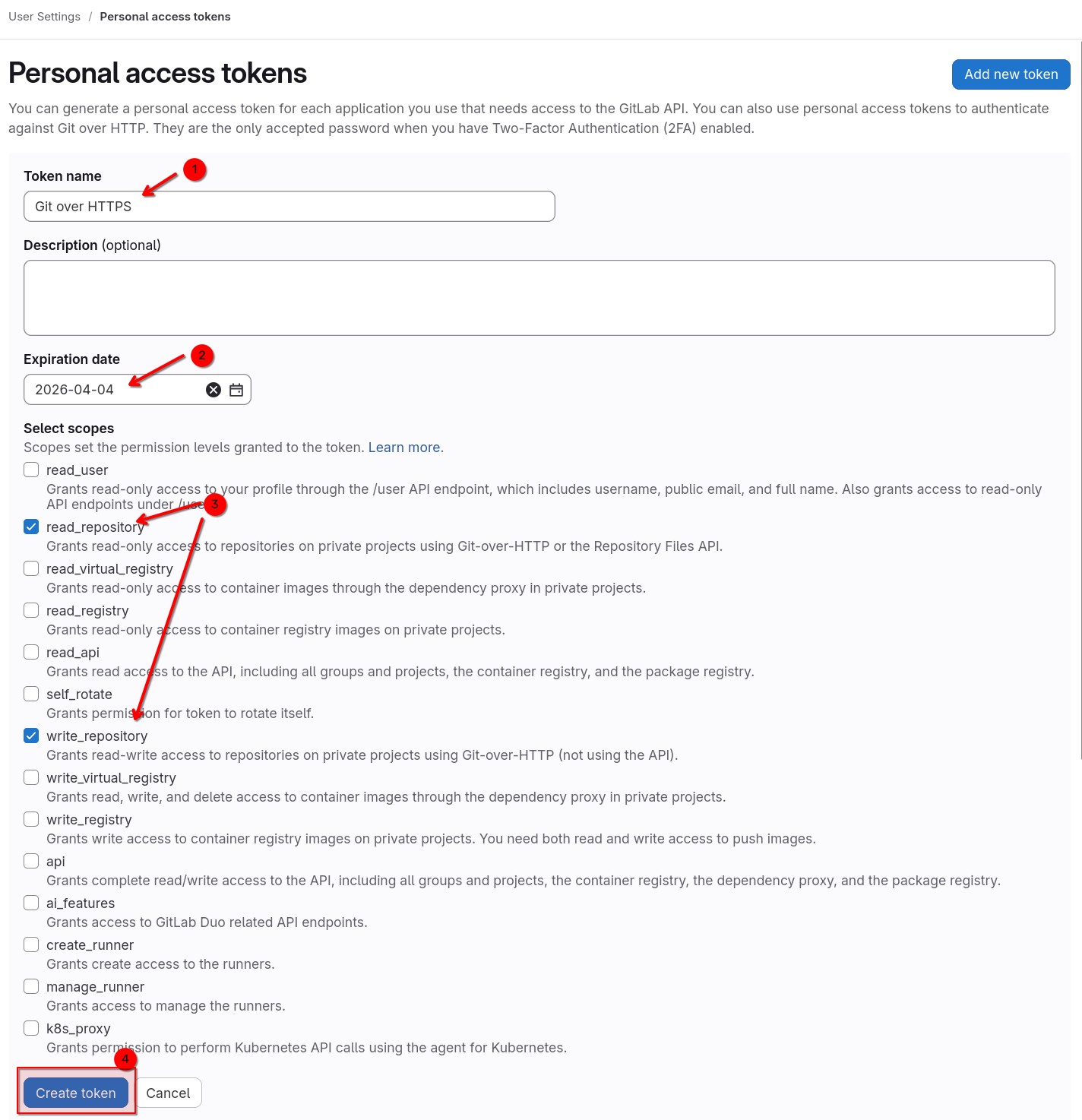
First, make sure to give it a descriptive name (1) as well as an expiration date (2). Then, add some permission scopes to it. At the very minimum, ensure that the read_repository and write_repository scopes are enabled (3), but you can also add further if you’d like.
Finally, click on Create token (4). GitLab will generate a secure token for you, which you can then copy into your clipboard using the highlighted button.

Warning
The token will only be showed this once, so store it in a safe place (e.g. alongside your digital-hub.sh SSO account credentials inside your password manager.)
For more information regarding personal access tokens, please refer to the Personal access tokens article in the GitLab documentation.
Using Git via SSH
Warning
Currently, performing Git operations via SSH is only supported from within the University of Lübeck network.
To enable the use of SSH for Git operations, you need to add your SSH public key to your GitLab account.
Visit the SSH Keys settings page when logged in to manage your SSH keys. There, you will find a button entitled Add new key:
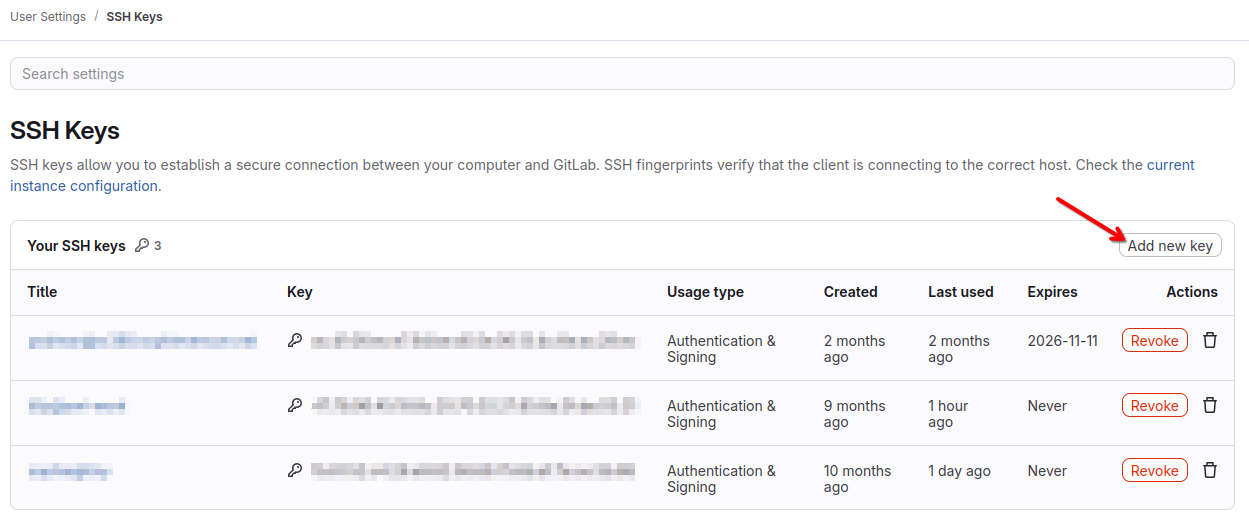
After clicking it, you will see the form for adding a new SSH public key.
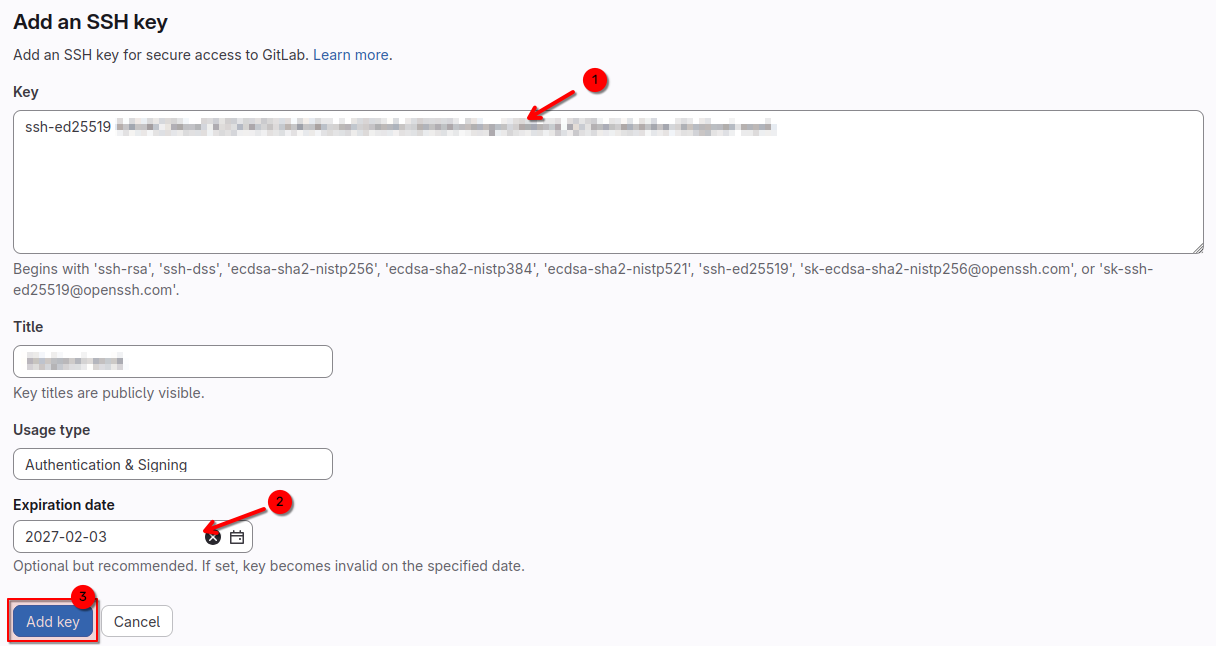
Copy the contents of your desired public key into the Key text area (1). Note that the Title field will automatically be populated by the key’s comment, if it exists. If your key does not have a comment or if you wish to change it’s title, make sure to do so.
Next, consider adding a suitable Expiration date for your public key (2), which can help in preventing unauthorized use if your private key ever gets leaked.
Finally, click on Add key (3) to finish adding your key to GitLab. You can now use it for Git operations via SSH.